
Building the technology of the future
Weather Radar
Access radar and satellite imagery, with cached last-good frames when NOAA is not reachable.
Rack Builder
Lay out routers, switches, patch panels, servers, and UPS gear in a virtual 42U rack.
Tab Explorer
A Windows file explorer alternative with tabs, dual panes, pinned items, and fast search.
Aecii Image Browser
A native Windows image browser for ComfyUI workflows, with remote updates from this site.
Warehouse 5.1
VRChat ARC room processor: line arrays as the source, the rest of the 5.1 bed is warehouse echo over OMT.
LLM Core Builder
Generate the root markdown file that gives every AI the skeletal system of your project.
AI Constructs
Browse open-weight models and download the GGUF files directly for local runtimes.
AI Score
Freedom scores for ChatGPT and Grok, mapped side by side from the field notes.
VR Hardware
Headsets, controllers, and Lighthouse base stations on sale now, with specs and current prices.
VR Social Platforms
Stacked comparison of VRChat, Resonite, ChilloutVR, Somnium, Basis, NexVR, and the rest of the field.
Read the latest articles
The six newest posts. Browse all articles
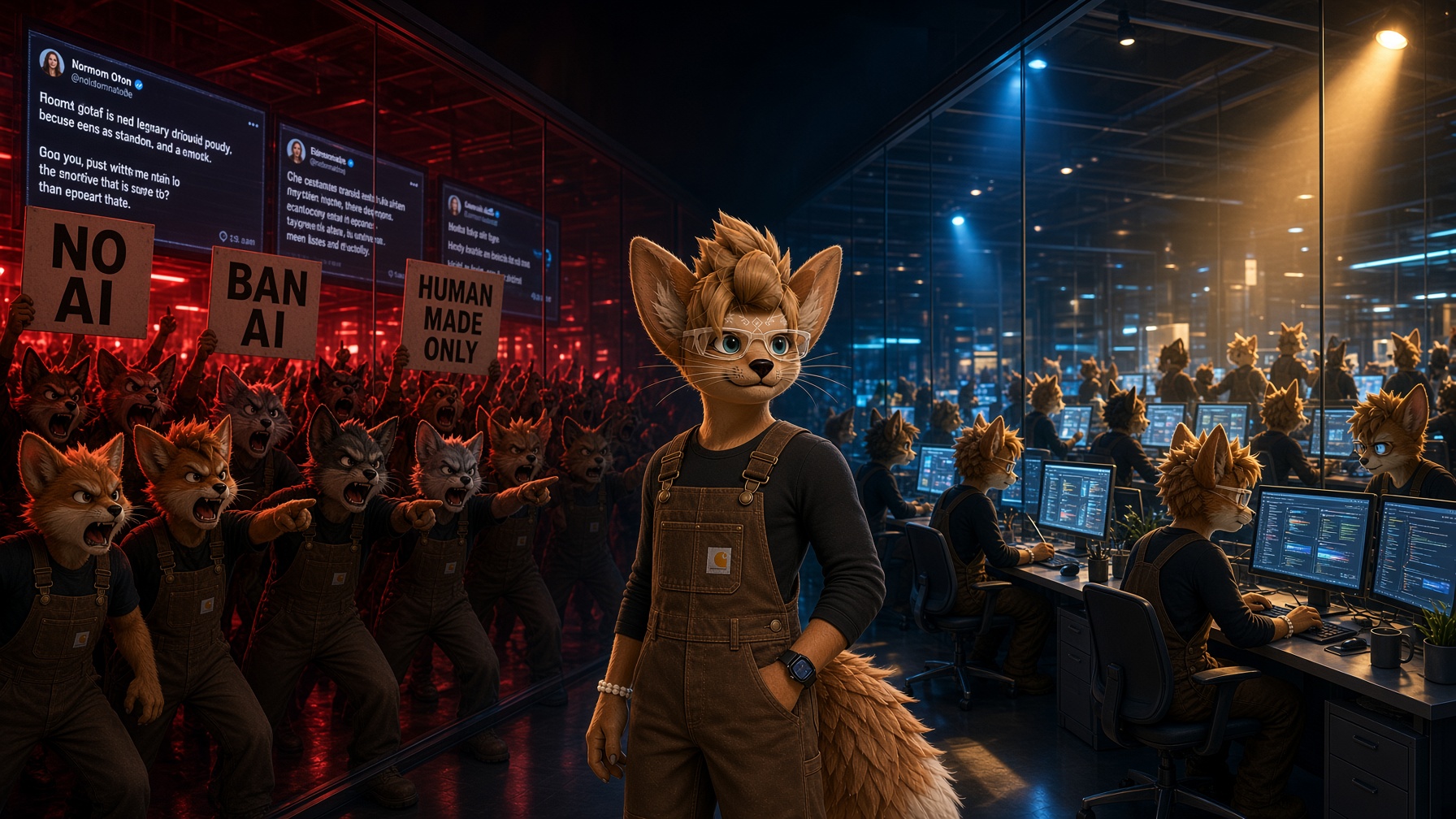
The AI Divide: Why Some Critics Are Quietly Using the Technology They Publicly Condemn
As artificial intelligence becomes increasingly embedded in everyday creative and professional work, a growing contradiction is emerging between what some peopl...
The Baseline Trap: Why Success Stops Feeling Like Success and How to Escape It
The more we achieve, the more we expect. Psychologists have studied how people adapt to improvements in their lives, and the findings help explain why success c...
VRChat Updates Terms of Service and Privacy Policy: Here's What You Need to Know
October 24, 2026 Technology & Digital Privacy VRChat has updated its Terms of Service and Privacy Policy, introducing clearer rules surrounding user privacy, mo...

Everyone Wants to Lead. Fewer Are Prepared for What Leadership Demands.
The pursuit of recognition and authority often overshadows the less glamorous obligations of leadership. But when promises go unfulfilled, the consequences rare...
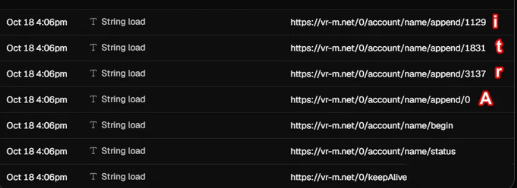
T&S Ticket submission - Popcorn Palace
Subject: Potential Udon Security Bypass - Player Username Exfiltration Through Sequential URL Requests 1. What Is the Vulnerability? I am reporting a potential...
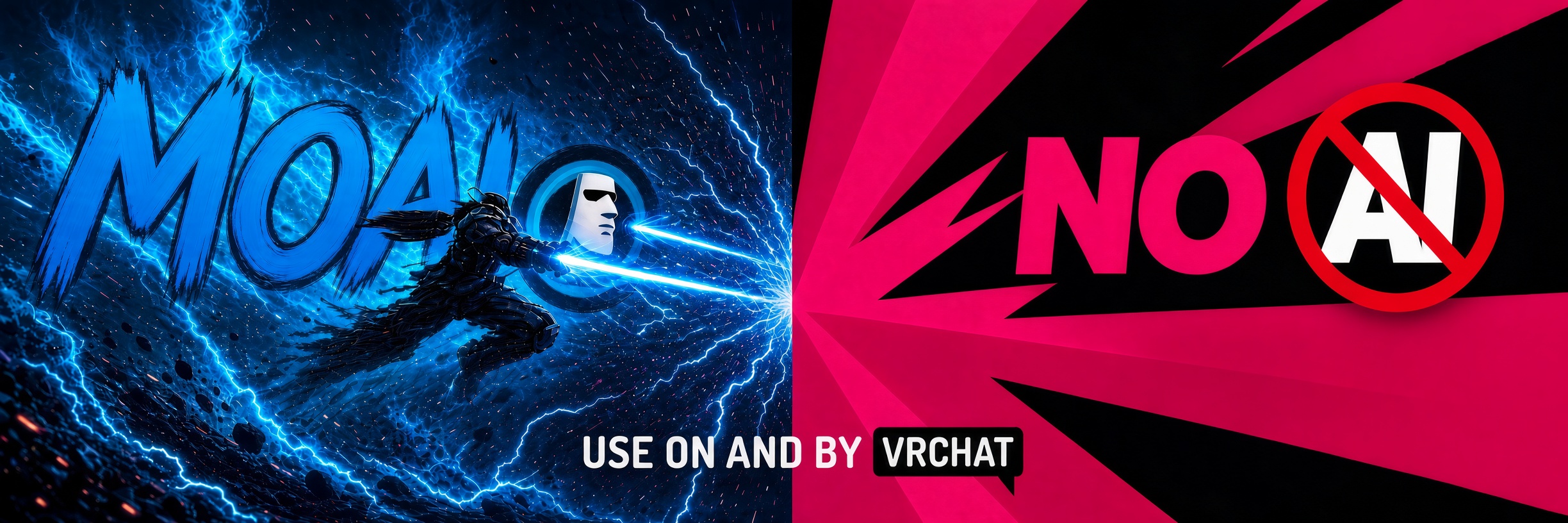
The AI Debate in VRChat Is Really a Debate About What We Expect the Platform to Become
The latest argument over generative AI in VRChat may appear to be about artwork, disclosure labels and content filters, but underneath it is a much older questi...
Join in
Become a member.
Create an account and get access to the Lab, See internal articles and be a part of the innovation team.